Debugging#
To ease the debugging process, the file processing library uses custom exceptions and logging to pinpoint errors. These tools are documented below.
Directory Class#
The Directory report generators are highly robust as they have a try... catch... handler to report files that failed to process. Therefore, the program is fault-tolerant against corrupted files, unsupported extensions, temporary files, and files that are currently in use. However, the code will crash if the csv report is currently open in another program. Therefore, it is essential to close the CSV if it is in use prior to generating a new report.
EmptySelectionerror: This happens when the target directory or filtered selection is emptyFilePermissionError: This happens when the output CSV is currently open in another program
Logging#
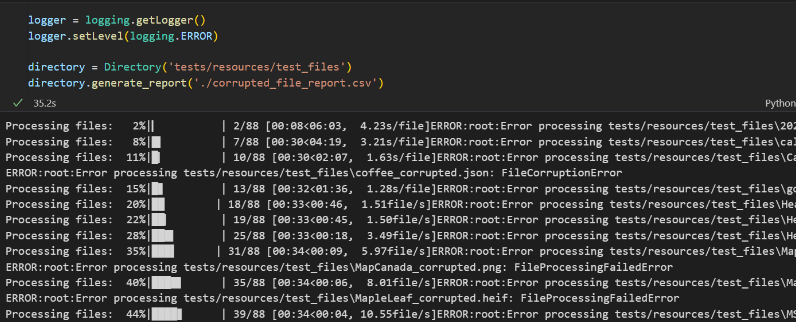
The Directory class also has logging capabilities to record the file that is currently being processed (logging.INFO), as well as files that fail to process (logging.ERROR). This is helpful for identifying the source of failure and how far the code got into execution before failing. To access logs, insert this code before the report generation code:
The Python logging extension is imported and the logging level is set to ERROR, so all files that failed to process are shown. See more examples here
import logging

logger = logging.getLogger()
logger.setLevel(logging.ERROR)  # or logging.INFO
...
Files that failed to process due to various errors are shown below. In this case, these failures are caused by corruption errors.
File Class#
Most of the errors are concentrated in the processing of the File class:
FileProcessingFailedError: This is a general error for any issues found during processing. The input file is most likely corrupted. Havingopen_file=Falseis a workaround for this, but the code will only extract generic file data (ex. file name, modification time).FileCorruptionError: The input file is corrupted so file-specific metadata cannot be extracted. This is an exclusive error for Microsoft Office file types (docx, pptx, xlsx).OCRProcessingError: Pytesseract library fails to process the given image or PDF. Try to open the file manually to confirm the file is readable. The worst case is that the image needs to be re-created by screenshotting the original file and saving it into another file.NotOCRApplicableError:use_ocr=Trueis used on a non-applicable file extension. The supported extensions are: pdf, jpeg, jpg, png, gif, tiff, tif.TranscriptionProcessingError: Whisper library fails to process the given audio file. Try to open the file manually to confirm the file is readable. It may be an issue on Whisper’s end.NotTranscriptionApplicableError:use_transcription=Trueis used on a non-applicable file extension. The supported extensions are: mp3, wav, mp4, flac, aiff, ogg.TesseractNotFound: Tesseract is not installed or not added to the correct path (C:/Users/USERNAME/AppData/Local/Programs/Tesseract-OCR/tesseract.exe).NotDocumentBasedFile: Non-document files (ie files without the ‘text’ field) are compared via Cosine or Levenshtein.